Logging in
- Open the PsyTrace Login page in your browser (Chrome, Edge, Firefox or Safari).
- Banner: your facility, written exactly as your administrator gives it, for example
PsyTrace Facility [Sample]. The word in [square brackets] tells PsyTrace which facility to open. The browser remembers it, so you type it only once on each computer.
- Login and Password: type your own. They are personal — never share them and never log in for somebody else.
- Click Login. The main screen opens.
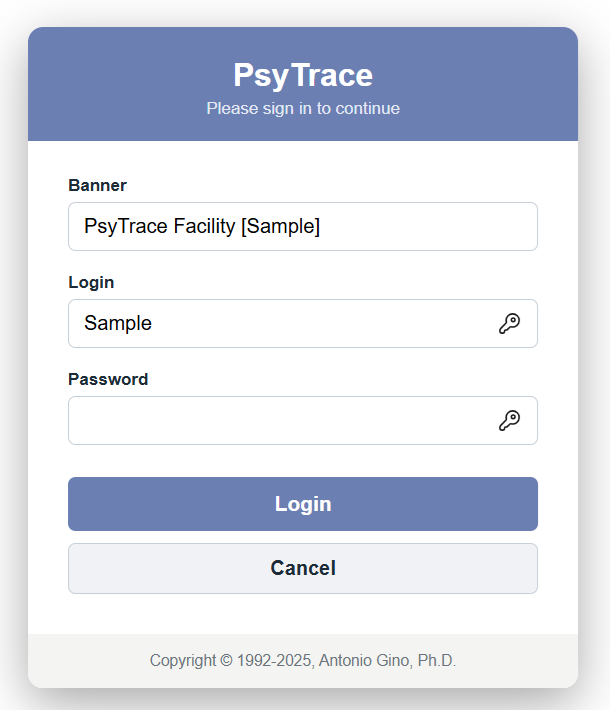 The Login page.
Cancel takes you back to the web site you came from (for example GinoClinic.com); if you typed the address yourself, it just empties Login and Password.
What can happen right after logging in
- Change Password — if your password was reset by the administrator, or has expired, PsyTrace asks you to choose a new one before going on. See Passwords.
- Documents to sign — if a document you signed (for example a confidentiality agreement) has expired or expires within 30 days, a notice lists it. Sign it again from (providers) or ask your administrator.
Logging out
When you are done, click . The Logout page confirms it; from there you can log in again or close the window.
PsyTrace also logs you out by itself, to protect client information on an unattended computer:
- after 20 minutes without any activity, and
- about 5 minutes after you close the PsyTrace window or tab without logging out.
Anything not yet saved in an open form is lost, so save your work before leaving the computer.
Who is logged in?
shows the user, the Facility and the Service/Department of this session — useful on a shared computer.