WhoEvery user
In shortClick a line → its menu → New / Edit / View → a form → Save
Click a line, get its menu
Each screen is made of small windows, each with a list: Insurance, Episodes, Alerts, Encounters, ... Click a line of a list: the line is highlighted and the list's menu opens next to it. The menu's items act on the line you clicked.
A typical menu has New, Edit and View. Example: to correct an alert, click the alert, then .
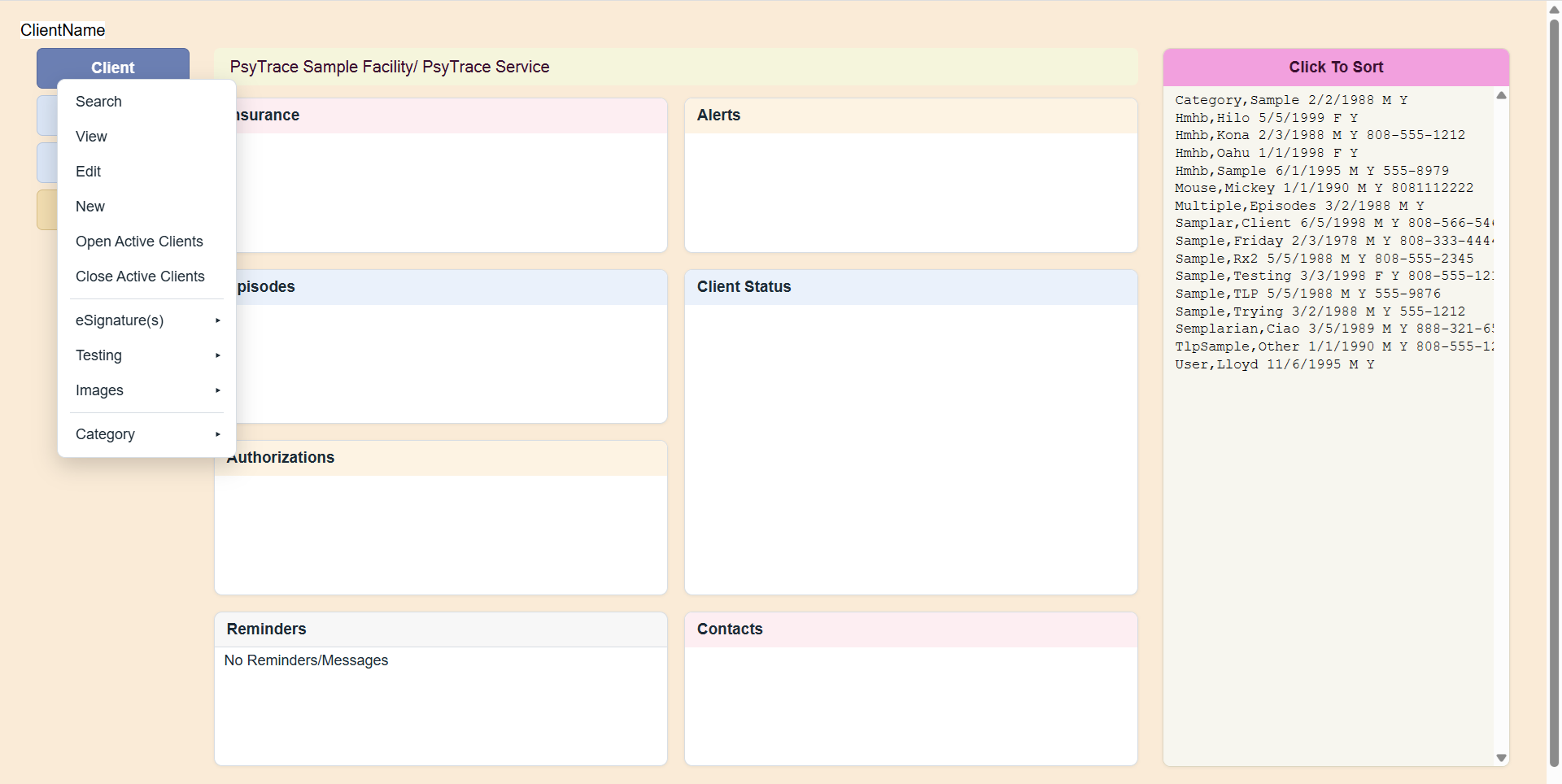 A click opens a menu — here the Client menu. List menus open the same way, next to the line you clicked.
Empty list? It shows one line such as <No Alerts>. Click that line: the menu opens, so you can choose .
There is no right-click anywhere in PsyTrace: a normal click is all you need.
Grey (dimmed) menu items
An item that cannot be used right now is shown in grey and does nothing. Rest the mouse on it to see why. The most common reasons:
- The selected Episode of Care is discharged: it is locked, so items that would add to it or change it (New Contact, Edit Authorization, New Encounter, ...) are dimmed. View items still work.
- The Episode belongs to another Service/Department: you may not view or edit it; still works for your own Service.
- Items marked (not yet built) are coming in a later version.
Forms
New, Edit and View open a form in a window over the screen.
- Save checks what you typed and saves it. If something is missing or wrong, a message tells you what to fix and nothing is saved until you fix it.
- Discard closes the form without saving.
- View shows the same form read-only: the fields have a light brown background with a dashed border, and there is only Close.
- After a form closes, the lists of the screen are reloaded, so you see your change at once.
- While PsyTrace is saving, the mouse pointer turns into a wait cursor — click only once.
Typing in a form
| Field | How |
|---|
| Dates | Type the date as month/day/year, e.g. 10/25/2026. PsyTrace checks it when you leave the box. Most forms refuse dates in the future (an encounter, a contact) and dates before the start of the Episode of Care. |
| Lists to choose from | Fields with a List button (Carrier, Location, Referral, ...): type the first letters, then click List (or press Enter) and choose from the list. |
| Drop-downs | Click and choose. |
| Notes | Plain text. Import Note Text adds one of your facility's pre-defined notes, which you can then change. |
| Tab key | Moves to the next field, in screen order. |
More details on a line
Rest the mouse on an encounter line (Clinician, Finance, IOP screens) to see its details: procedure, diagnosis, provider, location, authorization, billed / paid.
Use PsyTrace's own buttons, not the browser's. The browser's Back and Reload buttons leave or restart the main screen: you would have to choose the client again, and a form not yet saved is lost.