WhoEvery user
Two waysThe Active Clients list (right), or
1. From the Active Clients list
The column on the right of the main screen lists active clients. Click a name and it becomes the current client: the name appears at the top and every list of the screen is filled with that client's data.
To list other clients, click the Click To Sort heading and choose:
| Choice | Lists |
|---|
| Last Few | The most recent active clients. A clinician sees the last clients she/he has seen (with encounters). |
| Category | The clients of one Category. |
| Client Status Active / All | The clients with a given Client Status (for example "Drug Court"): only current ones, or also past ones. |
| Authorization Pending | Clients whose authorization is still pending. |
| My Clients (exclusive) | Your own clients. |
| Case Manager (me) | Clients whose Episode of Care has you as the Contact/Case Manager. |
| Not seen > 30 Days | Clients with an active Episode who have not been seen recently. |
| Encounters Not Billed | Clients with encounters still to bill. |
| Invoice Open | Clients with an open invoice. |
The list can be hidden to make room: ; shows it again.
2. With Client Search
- Click .
- In Last Name, type two (or more) letters of the last name, a comma, and two (or more) letters of the first name — for example
ro,ma finds Rossi, Maria and Rodriguez, Mark. Names match from the beginning. Or type the whole DOB (date of birth), SSN or Insurance ID instead.
- Tick Active clients only to skip clients who are no longer active.
- Press Enter (or click Search), then click the client in Matching Clients.
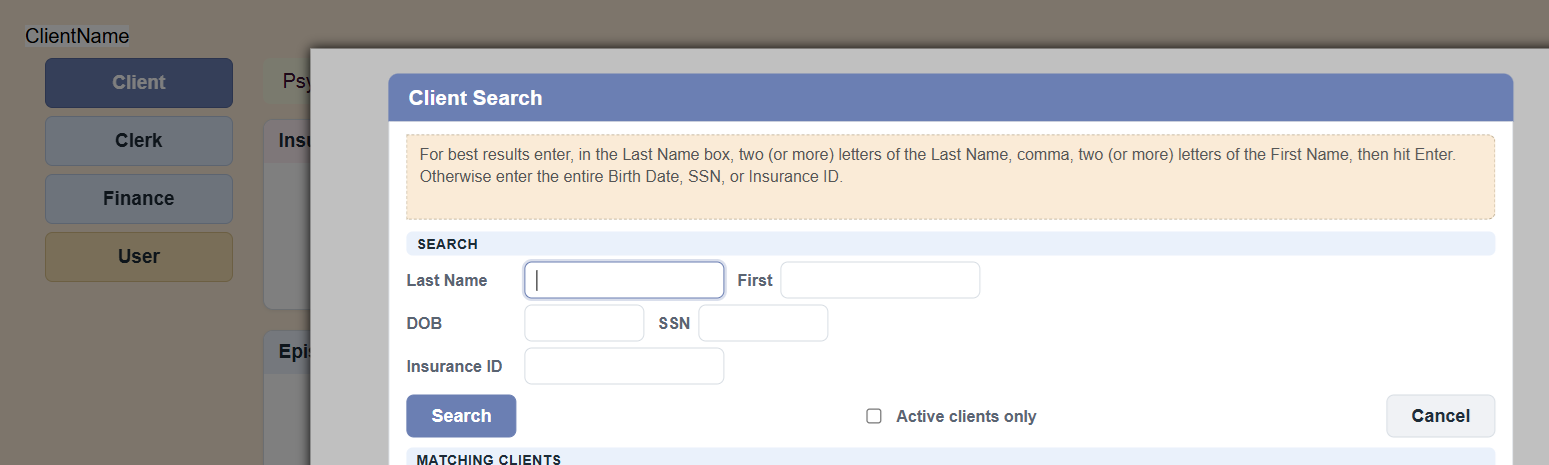 Client Search opens over the main screen.
Tip: search with only the first two letters of the last name. A spelling mistake (Rosi / Rossi) then still finds the client — and this is the best way to make sure a "new" client is not already registered (see New Client Registration).
What happens when you change client
- Every list of every screen is emptied and filled again for the new client; nothing of the previous client stays on the screen.
- If the client has documents to sign (for example a consent that expired), a notice lists them. The client signs them at the office computer with (see Client eSignatures).
- If you are assigned to a Category of clients, you see and find only the clients of that Category.