WhoClinicians (System users may file for another provider)
WhereClinician screen › Encounters list › (also on the IOP and Supervision screens)
Belongs toThe Episode of Care
About encounters
Encounters capture billable items (assessments, individual, group and family therapy notes) and non-billable ones (telephone calls with the client, cancelled appointments, no-shows). For non-billable items some procedure codes are defined as non-billable — e.g. TelCon for a phone call.
Every encounter carries what the claim needs: most of it is filed behind the scenes, but the clinician must give the procedure, the units, the diagnosis and the location. So before the first encounter these must be on file: the facility set-up (employees, locations, places, procedures), the client's registration (check gender and birth date), insurance with the insured ID, the Episode of Care, an authorization (N/A as number if none is needed) and at least one diagnosis — see the New Client Checklist.
A new encounter
- Click the Episode, then the Encounters list › . Already filled in: today's Date and End, you as Provider, Status Open, the default Place of service, 1 unit — and the authorization and diagnosis when there is only one.
- Group (group sessions only): the Topic and the client's Participation (None, Poor, Satisfactory, Good, Excellent). Leave both empty for an individual session.
- Authorization & Procedure: the Authorization (List), the procedure — click List next to the description, or type the CPT code and press Enter — and the Units.
- Diagnosis: List shows the client's diagnoses of this Episode (not the whole diagnosis table).
- Place & Location: the place of service (e.g. Office) and the Location where the client was seen (List).
- Note: the progress note (plain text). Import Note Text adds one of your pre-defined notes.
- Supervision (trainees): choose your Supervisor (already chosen when you have only one).
- Click Save. Discard saves nothing.
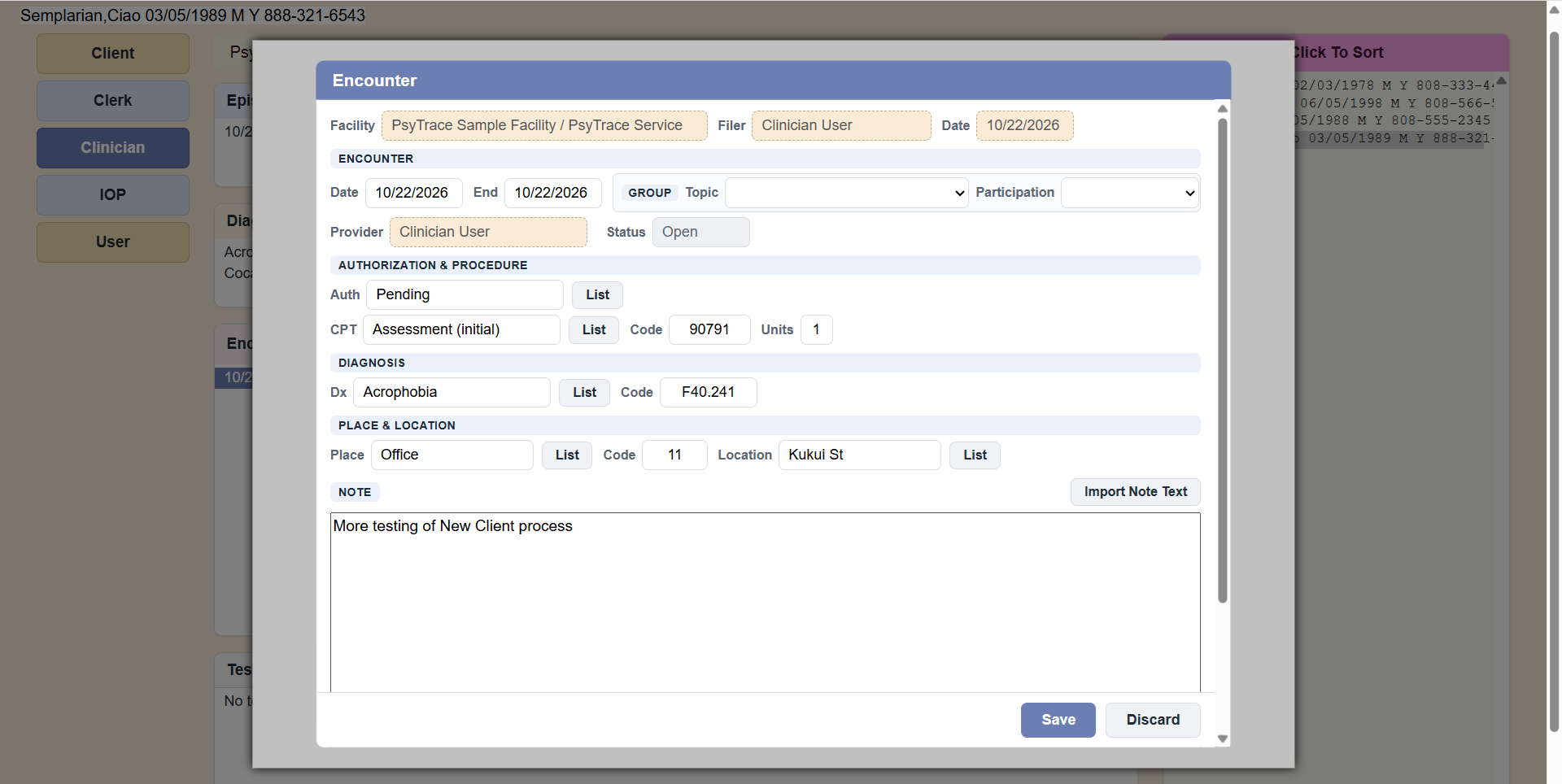 A (very simple) completed encounter. The Group box stays empty for an individual session.
PsyTrace checks
- A valid Date, not in the future (End too), not before the start of the Episode and not after its discharge.
- Required: Authorization, Diagnosis, CPT code, Units (more than 0), Provider, Place and Location.
- A trainee must choose her/his Supervisor.
- A discharged Episode is locked: New, Copy, Edit and Close are dimmed.
- An encounter already billed keeps its billing data: date, authorization, procedure, units, diagnosis, place, location and provider cannot be changed any more.
The other items of the menu
| Item | What it does |
|---|
| View Encounter | The encounter, read-only. |
| Edit Encounter | Change the clicked encounter. |
| Copy Encounter | A new encounter filled in from the clicked one (authorization, procedure, diagnosis, place, location, note), dated today, with you as provider; no supervisor addendum, no group topic. Change what is different and Save. |
| Close Encounter | Opens the clicked encounter, as Edit does. |
| View Audit Trail (changes) | Every change made to the encounter: when, by whom, which field, old and new value; note changes side by side. For the encounter's provider or supervisor, and System users. |
| Authorization Counts | For each authorization of the Episode: dates, units authorized, used and remaining. |
Supervision. When a trainee saves an encounter, it waits for the Supervisor's review (<S> in the lists). Opening it with View or Edit, the Supervisor marks it reviewed and may write a Supervisor Addendum, which only the Supervisor can change.