WhoEvery user; viewing results: clinicians
Where ▸ Test Client (self-administered) / Enter Test Results / Edit Test Entered / View Client Testing
Belongs toThe client's open Episode of Care (your Service)
Before you start
The client must have an open Episode of Care of your Service/Department: each test is filed in that Episode. The tests themselves (questions, choices, scales, scoring) are defined by the administrator.
1. The client takes a test on the computer
- With the client on the main screen: .
- The window shows the client, the Episode and Ordered by (you). Choose the Reason if you wish and who answers (Answered by: Client, Father, Mother or Other), and tick the test(s) to take.
- Click Start and turn the screen to the client.
- The client reads the introduction, then answers one question per screen: one click on the answer moves to the next question. Back shows the previous question with its answer, to change it.
- After the last question the client clicks Finish. The next test (if several were ticked) starts by itself.
- At the end the client sees only "All finished. Thank you." — no score.
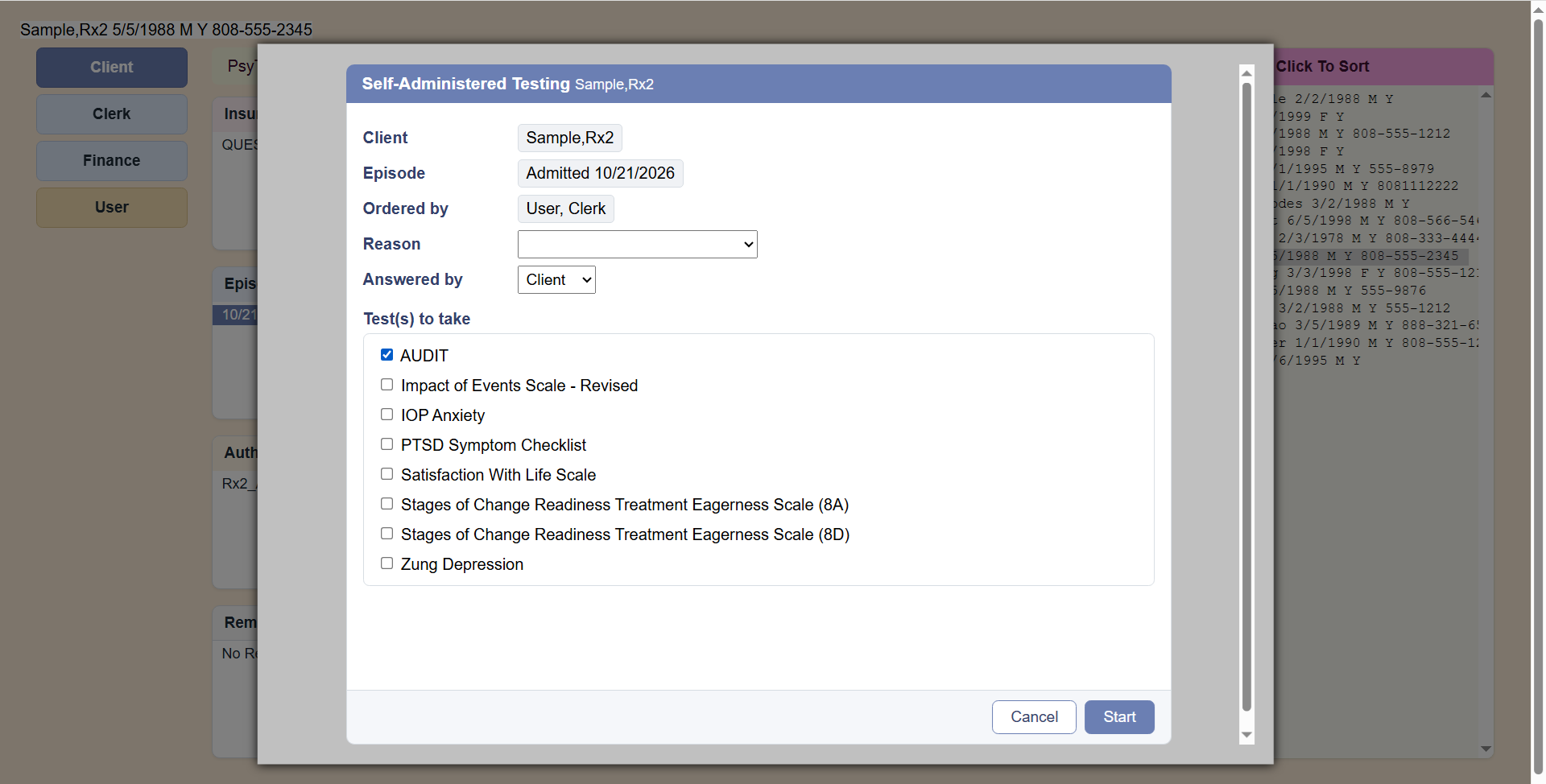 Self-Administered Testing: tick the tests, then Start.
Stop ends the test early: the answers of that test are not saved. Tests already finished stay saved.
2. Typing in a paper test
When the client filled in the test on paper (or a clinician ordered it), anyone can type it in — for example a clerk.
- .
- Choose the Test, the Date it was taken, the Reason, who answered, and Ordered by: the provider who ordered it (List; you, if you are a provider).
- Answer each question from its drop-down (typing the number picks the answer; Enter goes to the next question). A test without questions on file asks for the Total and the scale scores instead.
- Add a Note if needed and click Save. PsyTrace works out the scores.
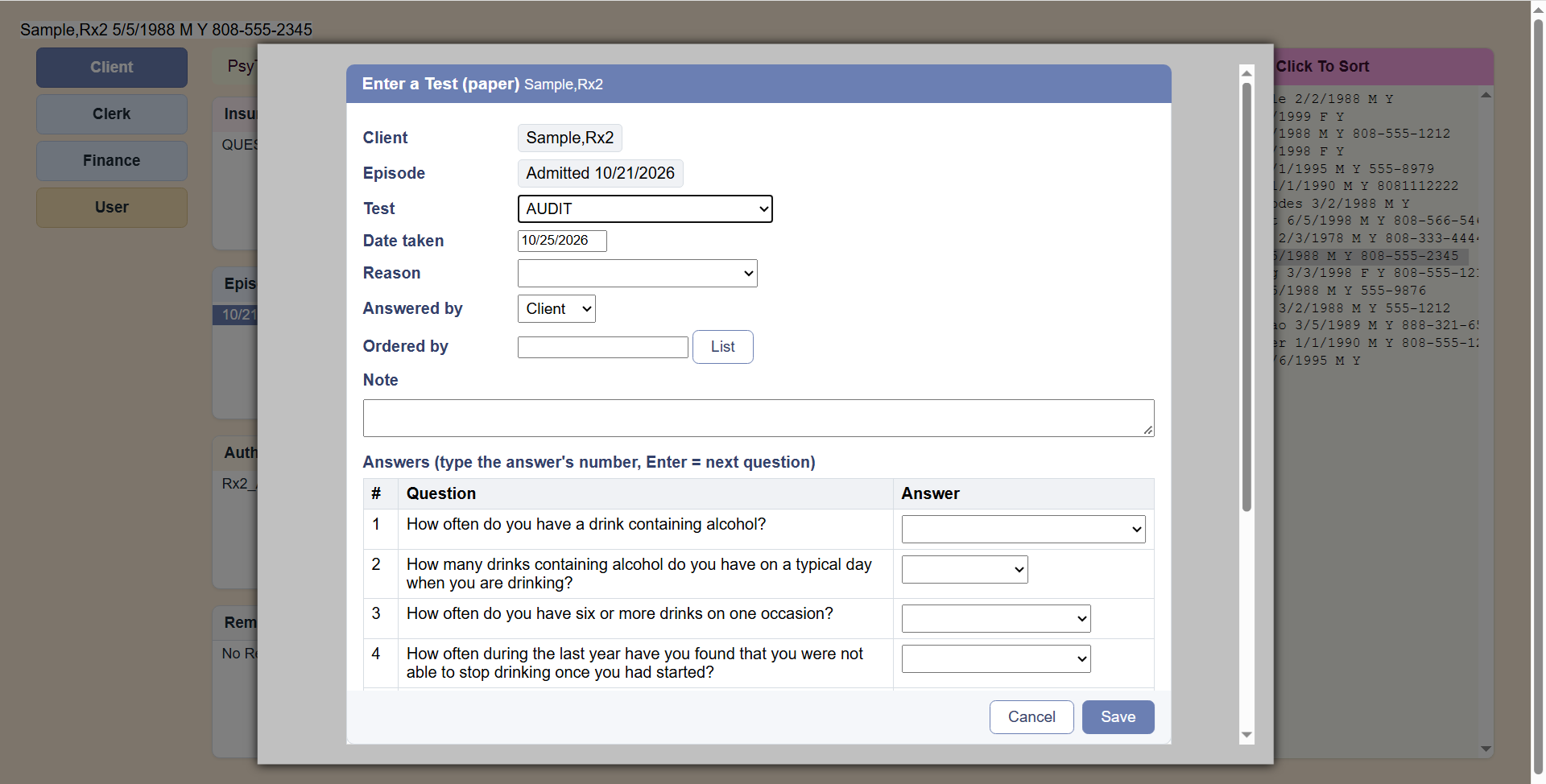 Enter a Test (paper): the answers are chosen from a drop-down next to each question.
3. Correcting a test typed in
lists the tests you may change: the ones you entered or ordered (System users: all). Change the date, reason, who answered, who ordered, the note or the answers; the scores are recalculated and every change is recorded in the audit trail. The test itself cannot be changed, and tests are never deleted.
4. Viewing the results (clinicians)
lists the client's tests of the selected Episode, newest first, with the total; click one for its scale scores and answers. The Clinician screen's Testing list shows the same tests.
PsyTrace checks
- An open Episode of Care of your Service/Department is required.
- Every question must be answered (a self-test is saved only when finished).
- Enter Test Results: the test, a date not in the future, and a provider in Ordered by are required.