WhoEvery user (a few items: System users only)
WhereThe button, top left of the main screen
Works onThe client shown at the top of the main screen
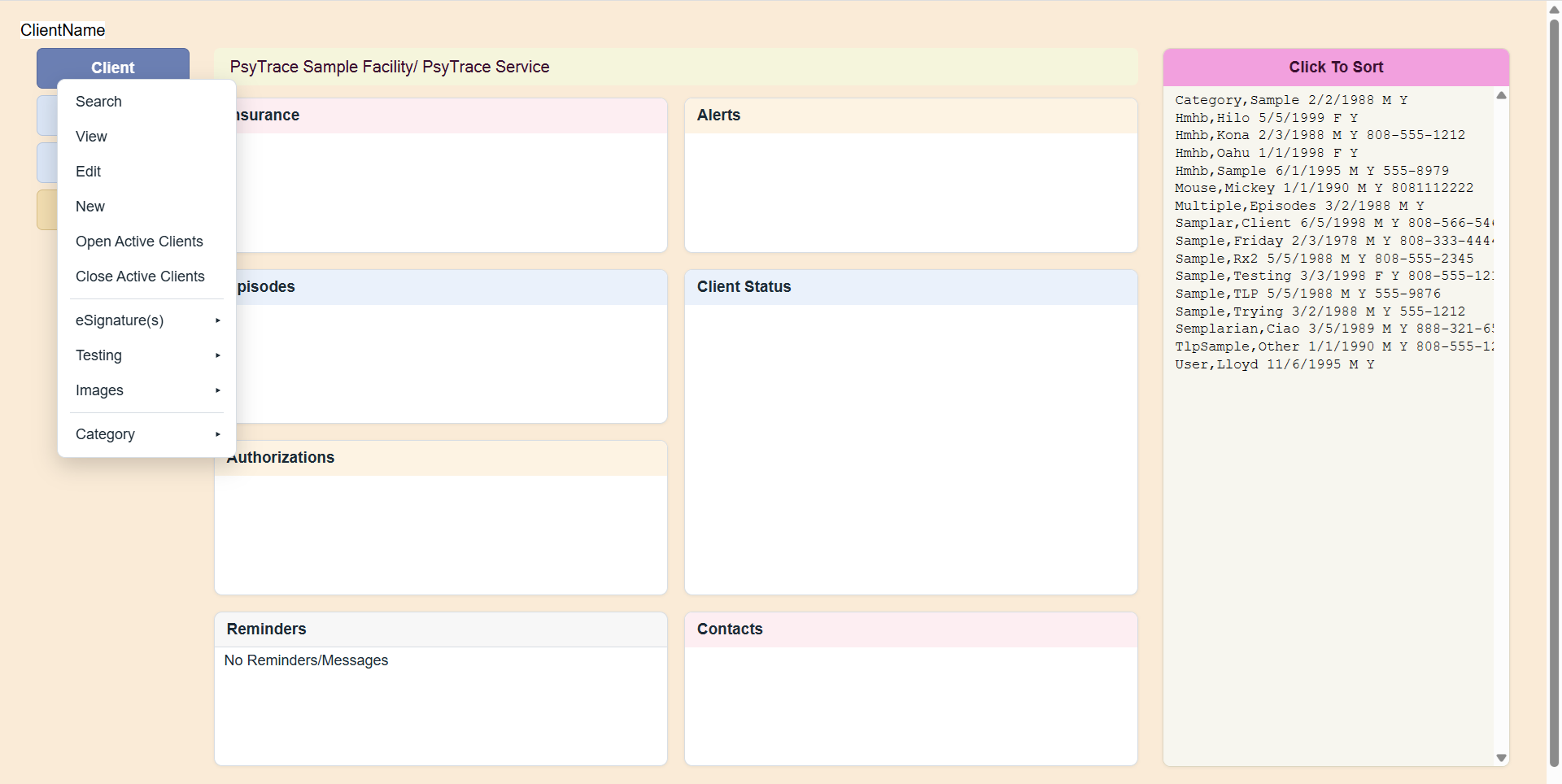 The Client menu. Items with ▸ open a second menu.
| Item | What it does | Page |
|---|
| Search | Find a client by name, birth date, SSN or insurance ID. | Choosing a Client |
| View / Edit | The client's Registration: read it, or correct it. | New Client Registration |
| New | Register a new client (then Insurance, Episode, Authorization follow). | New Client Registration |
| Open / Close Active Clients | Show or hide the Active Clients list on the right. | Choosing a Client |
| eSignature(s) ▸ | The client's own signature and PIN; the client signs documents (consents, agreements) at the office computer. | Client eSignatures |
| Testing ▸ | The client takes a test on the computer; staff type in a paper test; clinicians view the results. | Testing |
| Images ▸ | Scanned documents, photos and PDFs kept with the client's record. | Client Images |
| Internal Client Number | The client's number in PsyTrace (System users). | Duplicate Clients |
| Merge Duplicate Clients | Join two records of the same person (System users). | Duplicate Clients |
| Category ▸ | Put the client in a Category, or take her/him out (hidden from users who have a Category). | Client Category |
Choose the client first. Every item works on the client at the top of the main screen. Look at the name before you start — especially before signing, testing or merging.