WhoEvery user
Where ▸ New Image / View Saved Image
FilesPictures (JPG, PNG, GIF) and PDF, up to about 10 MB each
Use Images for anything on paper you want in the record: an insurance card (front and back), a photo ID, a referral letter, a court order, a signed paper consent. Prescriptions written in PsyTrace are filed here too, as PDFs.
Adding an image
- With the client on the main screen: .
- Choose the file. On a phone or tablet you can take a photo with the camera right there.
- Give it a Name (for example Insurance card front) and a Description.
- Click Save. Large photos are made smaller automatically; PDFs are kept as they are.
Looking at images
- .
- The client's images are listed by name, newest first. Click one to see it (a PDF opens inside the window). With only one image, it is shown at once.
- Download saves a copy on your computer, for example to print it.
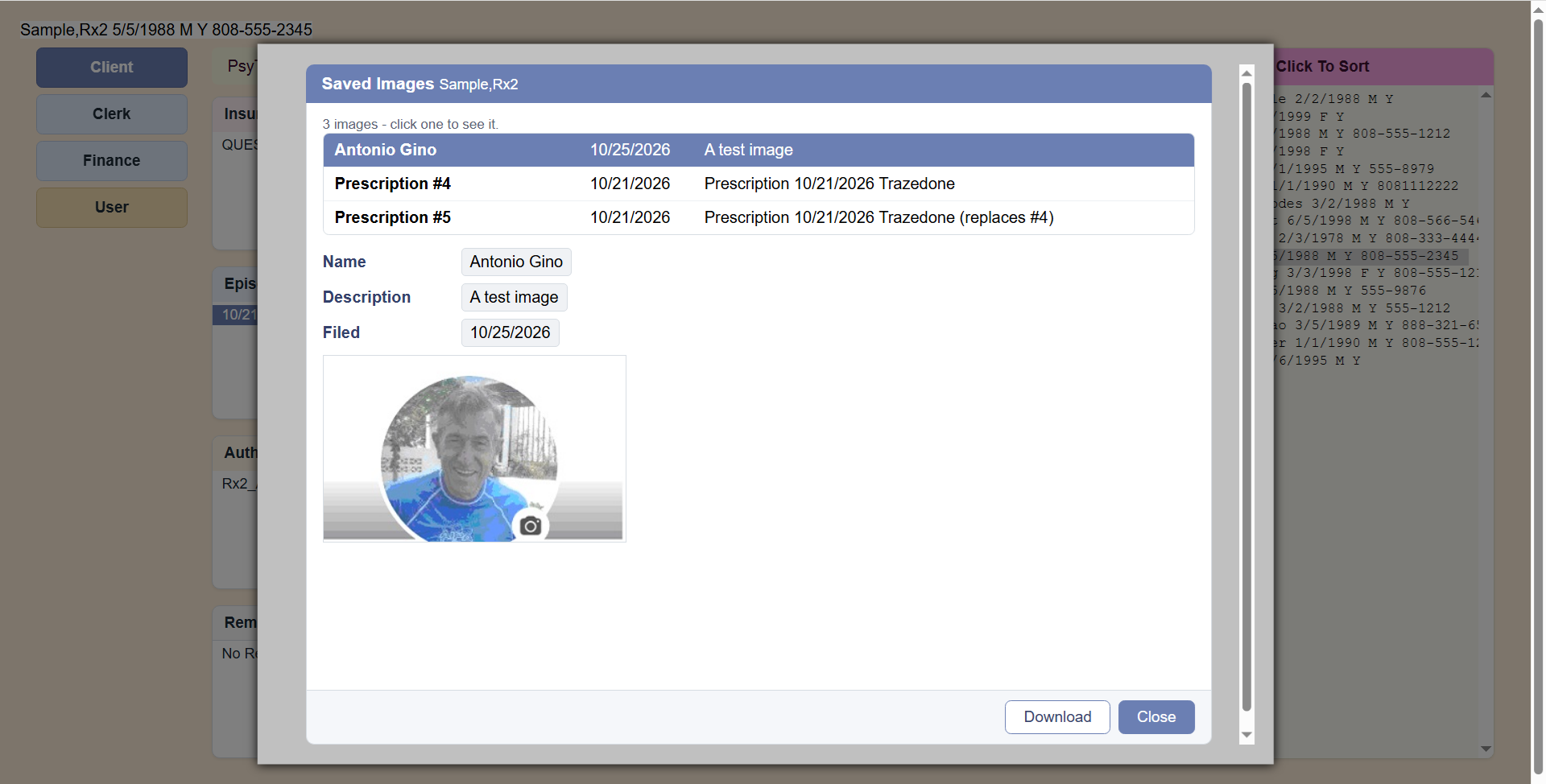 Saved Images: click a line to see it; Download saves a copy.
PsyTrace checks
- Name and Description are required (at least two characters each).
- Only pictures and PDFs, and not larger than about 10 MB.
- Images are never deleted — check you chose the right client before saving.
Downloaded copies stay on the computer you used. Delete them when you are done, especially on a shared computer: they contain client information.